

Run a service
During service, keep the Bookings page open on a tablet or the computer by the door. Every change shows for the whole team.
Before service
Section titled “Before service”- Read the Notes for the team at the top of the Bookings page, and the day’s Blocked on this day.
- Check the bookings with notes: they’re marked on the grid, and the morning summary email lists them with guests’ notes.
- Open the List view to see the day in time order.
Notes for the team
Section titled “Notes for the team”Press Add a note for the team to share news for the shift: who’s coming in, what’s off the menu, a birthday to look out for. Everyone sees it on the Bookings page that day, with who last changed it. Press Edit note to change it.
Update a booking
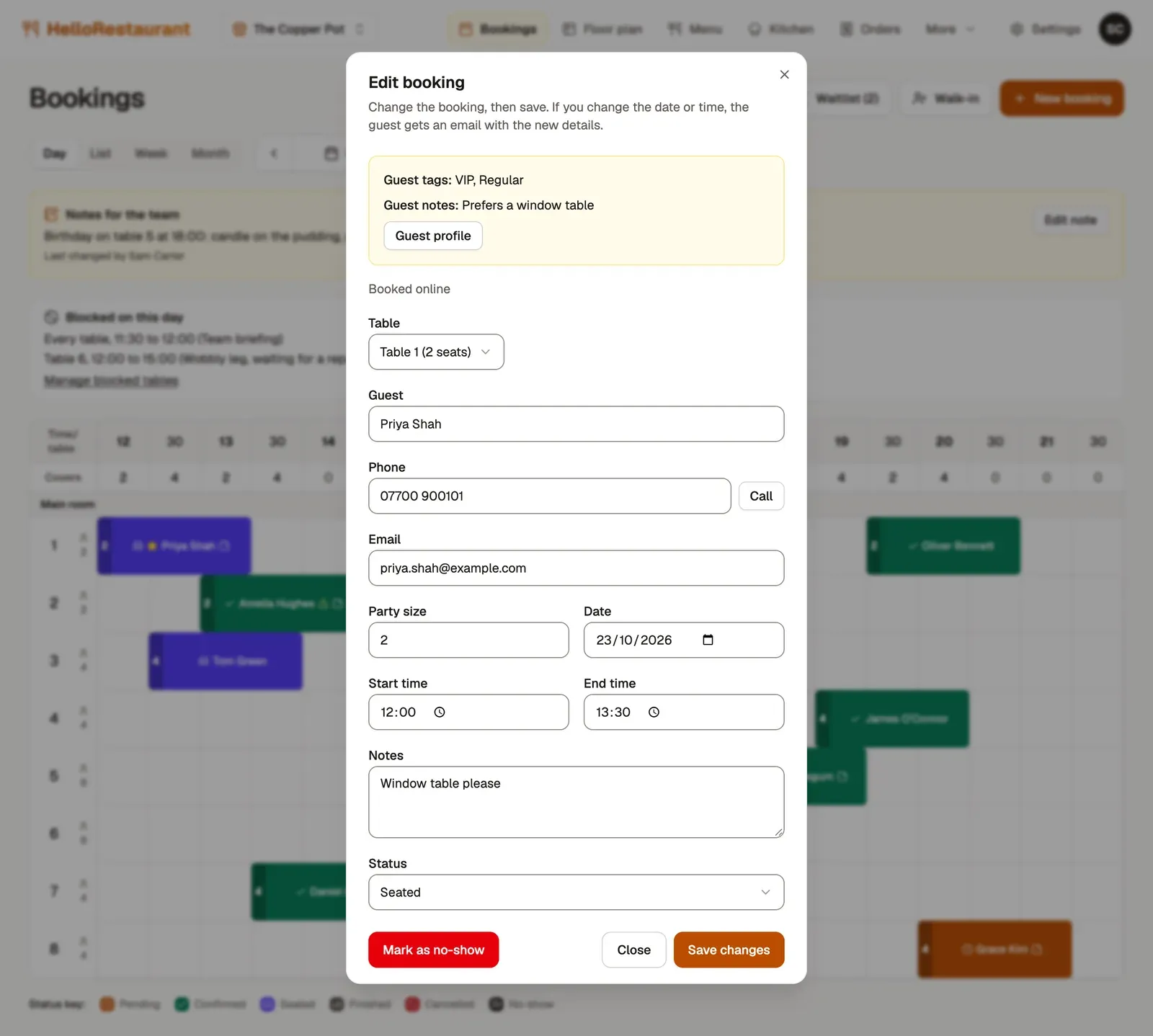
Section titled “Update a booking”Choose any booking on the Bookings page to open it.
-
Table: move the booking to another table. The list shows how many each seats, and warns you if a table is too small. You can also drag a booking to another table or time on the grid.
-
Status: set it as the meal goes on. Choose Seated when the guests arrive and Finished when they leave, which frees the table. To cancel a booking, choose Cancelled.
-
Guests didn’t come? Press Mark as no-show, then confirm. It counts towards the guest’s no-show limit.
-
Press Save changes. If you change the date or time, the guest gets an email with the new details.
At the top of the window are the guest’s tags and notes from their guest profile, such as an allergy or “prefers a booth”. If they paid a deposit, it says so.
Quicker from the list
Section titled “Quicker from the list”In the List view, each booking has buttons to Call the guest, Seat them when they arrive, mark them Finished when they leave, and Edit the booking.
Statuses
Section titled “Statuses”| Status | What it means |
|---|---|
| Confirmed | Booked. Every new booking starts here, and walk-ins start as Seated |
| Pending | Not confirmed yet. Use it for a booking you still need to check, such as a big party |
| Seated | The guests are at their table |
| Finished | They’ve left, and the table is free again |
| Cancelled | The booking won’t go ahead |
| No-show | The guests didn’t come |
When a booking is set to Finished, the guest is emailed a short form to review their visit.
Smart rearrange
Section titled “Smart rearrange”When the day gets busy, bookings can end up spread across tables so that a bigger party can’t fit anywhere. In the Day view, press Smart rearrange to move bookings between tables and free up as many tables as possible. It tells you how many bookings it moved, or that the bookings are already as tidy as they can be.
Set up your menus, so guests can order from their table.