

Booking rules
Booking rules decide what guests can book online, so your tables fill the way you want. They only apply to online bookings: you can always add bookings yourself, at any time.
Open Settings in the top bar, then choose Booking rules. The page has three parts: Online bookings, Times and tables, and Walk-ins.
Online bookings
Section titled “Online bookings”Accept online bookings turns your booking page’s booking form on and off. See Go live.
Times and tables
Section titled “Times and tables”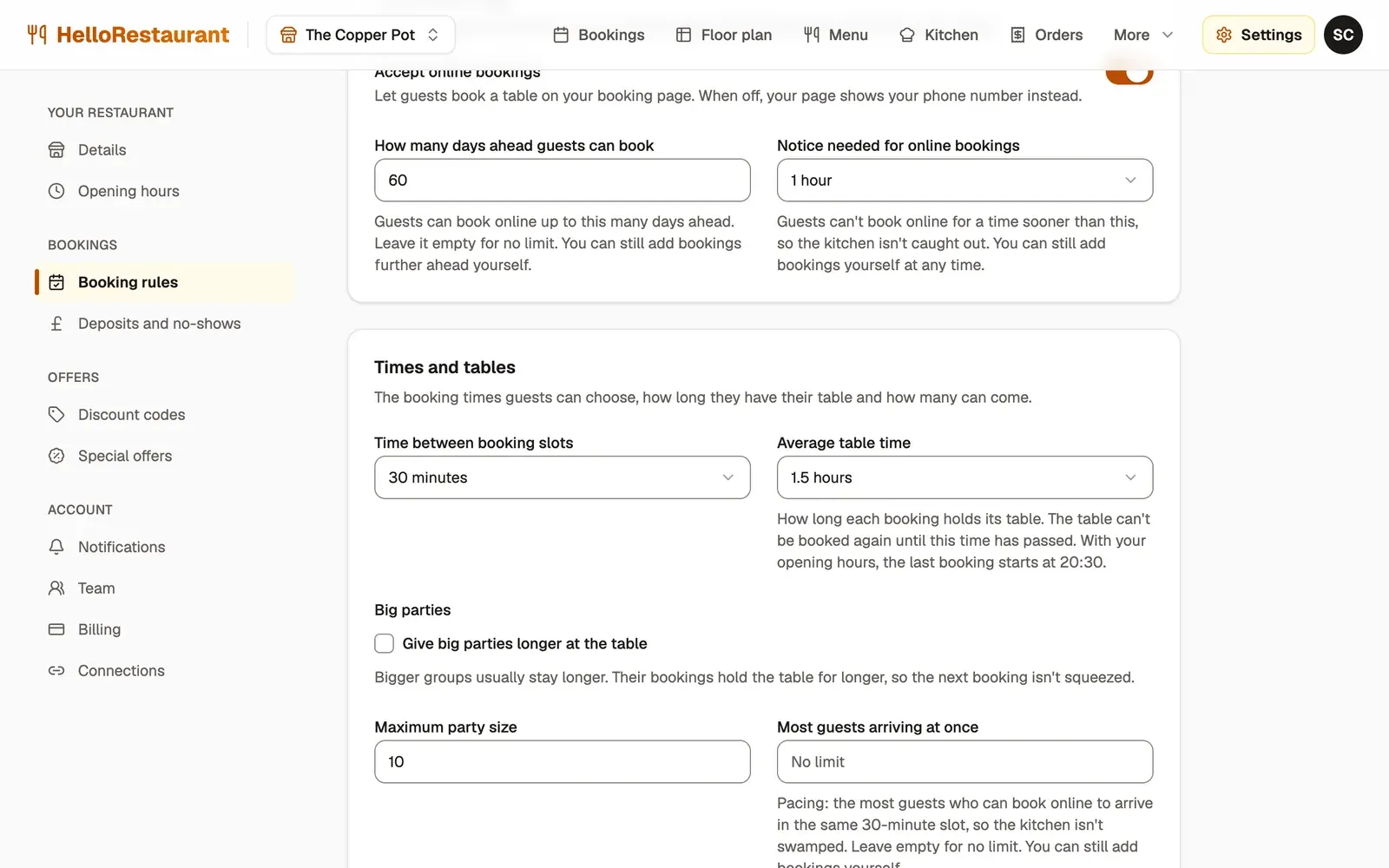
-
How many days ahead guests can book: for example 60, so nobody books for a date you haven’t planned yet. Leave it empty for no limit.
-
Notice needed for online bookings: guests can’t book online for a time sooner than this, so the kitchen isn’t caught out. For example, with 2 hours’ notice, a guest at 17:00 can book 19:00 but not 18:00.
-
Average table time: how long each booking holds its table. The table can’t be booked again until this time has passed. Most restaurants choose 1.5 or 2 hours.
-
Give big parties longer at the table: bigger groups usually stay longer. Tick this, then set Parties of this many or more and their Table time, so the next booking isn’t squeezed.
-
Most guests arriving at once: pacing. The most guests who can book online to arrive in the same slot, so the kitchen isn’t swamped by everyone arriving at 19:30. Leave it empty for no limit.
The same part of the page also has:
- Time between booking slots: the times guests can choose, such as every 15 or 30 minutes.
- Maximum party size: the biggest party guests can choose on your booking page. Bigger groups need to call you, and you can book them in yourself.
Press Save changes at the bottom of the page.
Walk-ins
Section titled “Walk-ins”Allow walk-ins lets you take guests without a booking when tables are free. See Walk-ins and the waitlist.
Closing a table or a time
Section titled “Closing a table or a time”Closed for a private party, or a table out of use? You don’t need to change your rules. Block the table or time instead.