

Lay out your floor plan
Your floor plan is how HelloRestaurant knows which tables you have and how many each seats. Guests booking online are only offered a table that fits their party, so add every table with its chairs.
Add your tables
Section titled “Add your tables”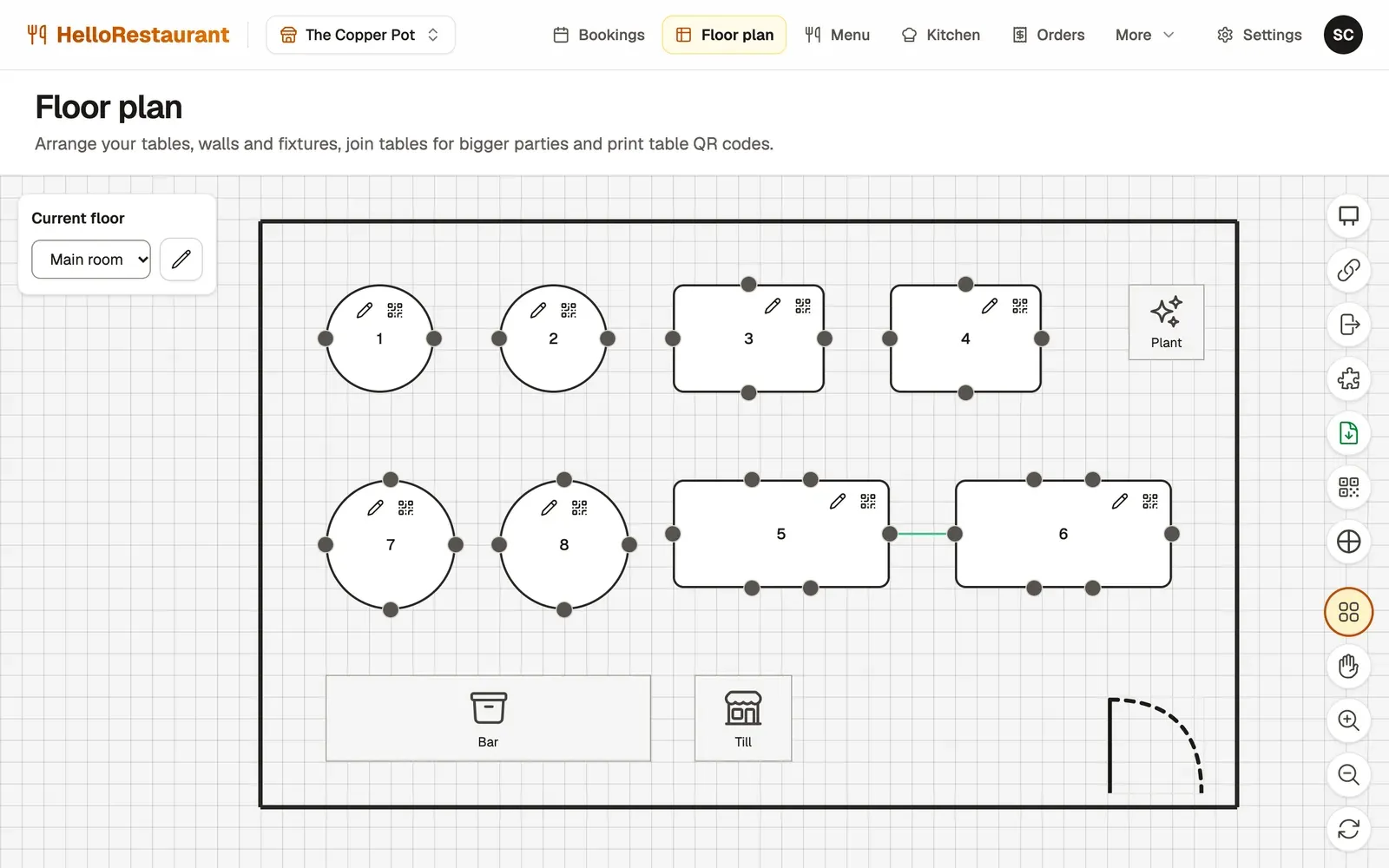
-
Open Floor plan in the top bar and press Add table. Give it a Table number, the Number of chairs and a Table shape, round or rectangular, then press Add table.
-
Drag each table into place. To change a table’s number, chairs or shape, press the pencil button on it, named Edit table. To add another table just like it, select it and press Duplicate table.
-
Press Save layout when the plan matches your room. The button tells you when you have changes that aren’t saved yet.
Using a keyboard
Section titled “Using a keyboard”Every table, wall and fixture can be placed without a mouse:
- Tab moves from one item to the next, and Enter selects it.
- The arrow keys move it one grid square. Hold Shift to move five.
- R turns it, and Shift+R turns it back.
- Delete removes it.
- Ctrl+Z (Cmd+Z on a Mac) undoes.
Screen readers announce each move, such as “Table 5 moved right: 12 squares from the left, 4 from the top”.
For exact placement, press a table’s Edit table button and use Position and size. Positions are in grid squares, counted from the top left of the plan.
Walls, the bar and the door
Section titled “Walls, the bar and the door”Make the plan look like your room, so staff can find tables at a glance:
- Add wall, then click where each end of the wall goes.
- Add decoration, then choose its type: Till, Bar, Toilets, Plant, DJ booth, Door or Other, and give it a label.
Decorations are only for show. Guests can’t book them.
More than one floor
Section titled “More than one floor”If you have a terrace, an upstairs room or a private dining room, give each its own floor:
- Open Manage floors, type the floor’s name and press Add floor.
- Choose the floor from Current floor, then add its tables.
- Choose which floor opens first by making it the default.
Turn on Show other floors faintly to line up tables with the floor below.
Down the side of the plan:
- Snap to grid keeps tables lined up as you drag them.
- Show grid shows or hides the grid squares.
- Pan mode lets you drag to move around a big plan.
- Zoom in, Zoom out and Reset view.
- Undo and Redo.
Deleting a table
Section titled “Deleting a table”Select the table and press Delete table. If the table has bookings, you’re warned first: deleting it deletes its bookings too. To keep them, move them to another table on the Bookings page first.