

Opening hours
Guests can only book online for times when you’re open. Your hours also show on your booking page.
Your usual hours
Section titled “Your usual hours”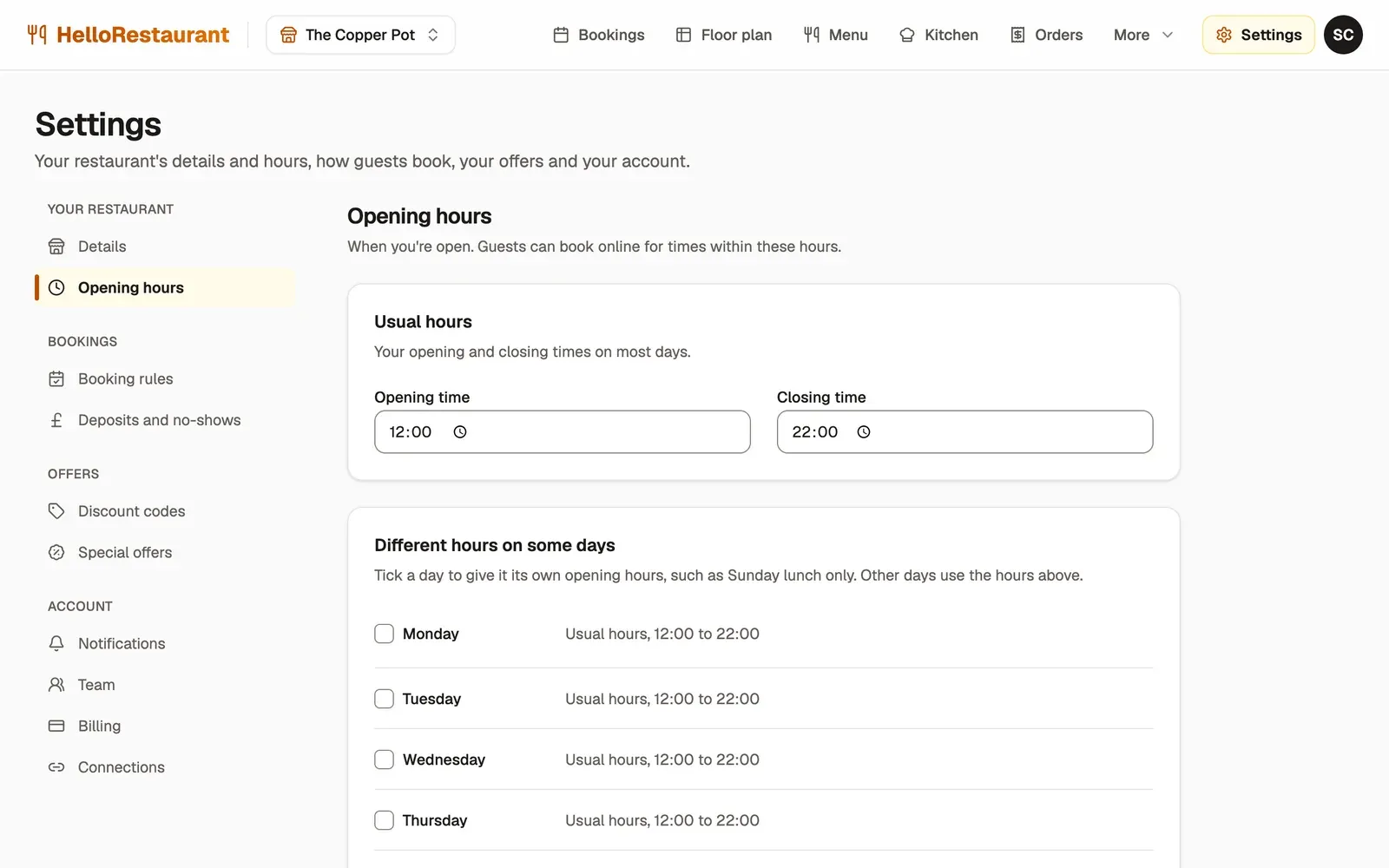
-
Open Settings in the top bar, then choose Opening hours.
-
Set your usual Opening time and Closing time: the hours you keep on most days.
-
Under Different hours on some days, tick a day to give it its own hours, such as Sunday lunch only. Then set that day’s opening and closing times. Days you don’t tick use your usual hours.
Press Save changes at the bottom of the page when you’re done.
A break between services
Section titled “A break between services”If you close between lunch and dinner, switch on Close for a break, then set when the break starts and ends. Guests can’t book a table that would run into the break.
Days you’re closed every week
Section titled “Days you’re closed every week”Under Closed every week, choose the days you’re always closed, such as Monday. Guests can’t book online on those days, and the Bookings page reminds you that you’re closed.
Holidays and one-off closures
Section titled “Holidays and one-off closures”Under Holiday closures, choose a Date and press Add date. Add as many as you need, such as bank holidays or a week off in summer, then press Save changes.
To open again on one of those days, press the remove button beside its date and save.
Set your booking rules: how far ahead guests can book, and how long they keep their table.