

Take bookings
Every booking, whether it’s made online, by phone or as a walk-in, lands on the Bookings page. It’s the first page you see when you sign in.
The Bookings page
Section titled “The Bookings page”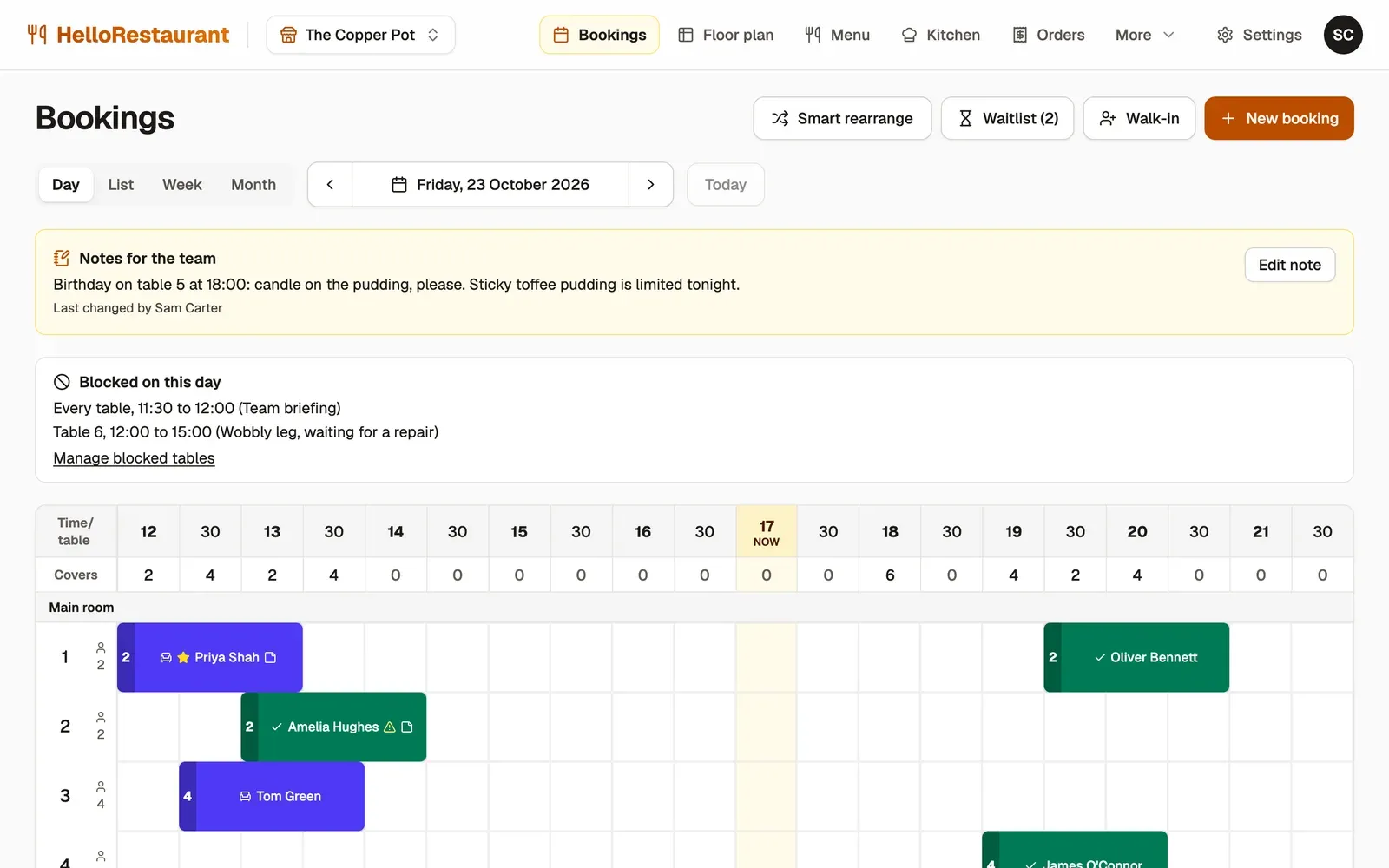
-
New booking adds a booking for a guest who phones or emails. See below.
-
Walk-in seats people who turn up without a booking. See Walk-ins and the waitlist.
-
Each booking sits on its table, from its start time to its end. Choose one to see the guest’s notes, seat them or make changes. See Run a service.
Above the grid:
- Day, List, Week and Month change the view. The arrows move a day (or week, or month) at a time, and Today comes back to today.
- Notes for the team shows anything the team should know today. See Run a service.
- Blocked on this day lists any blocked tables or times.
The Covers row under the times adds up how many guests arrive in each half hour, so you can see the busy times at a glance.
Which view to use
Section titled “Which view to use”- Day: a grid of tables and times. Best for running a service, and for moving bookings by dragging them.
- List: the day’s bookings in time order, in words, with buttons to call, seat, edit and finish each one. Best on a phone, and with a screen reader.
- Week and Month: how busy each day is, to plan staff and stock. Choose a day to open it.
Each booking’s colour and icon show its status, and the key under the grid says which is which. The List view spells out each status in words.
Add a booking
Section titled “Add a booking”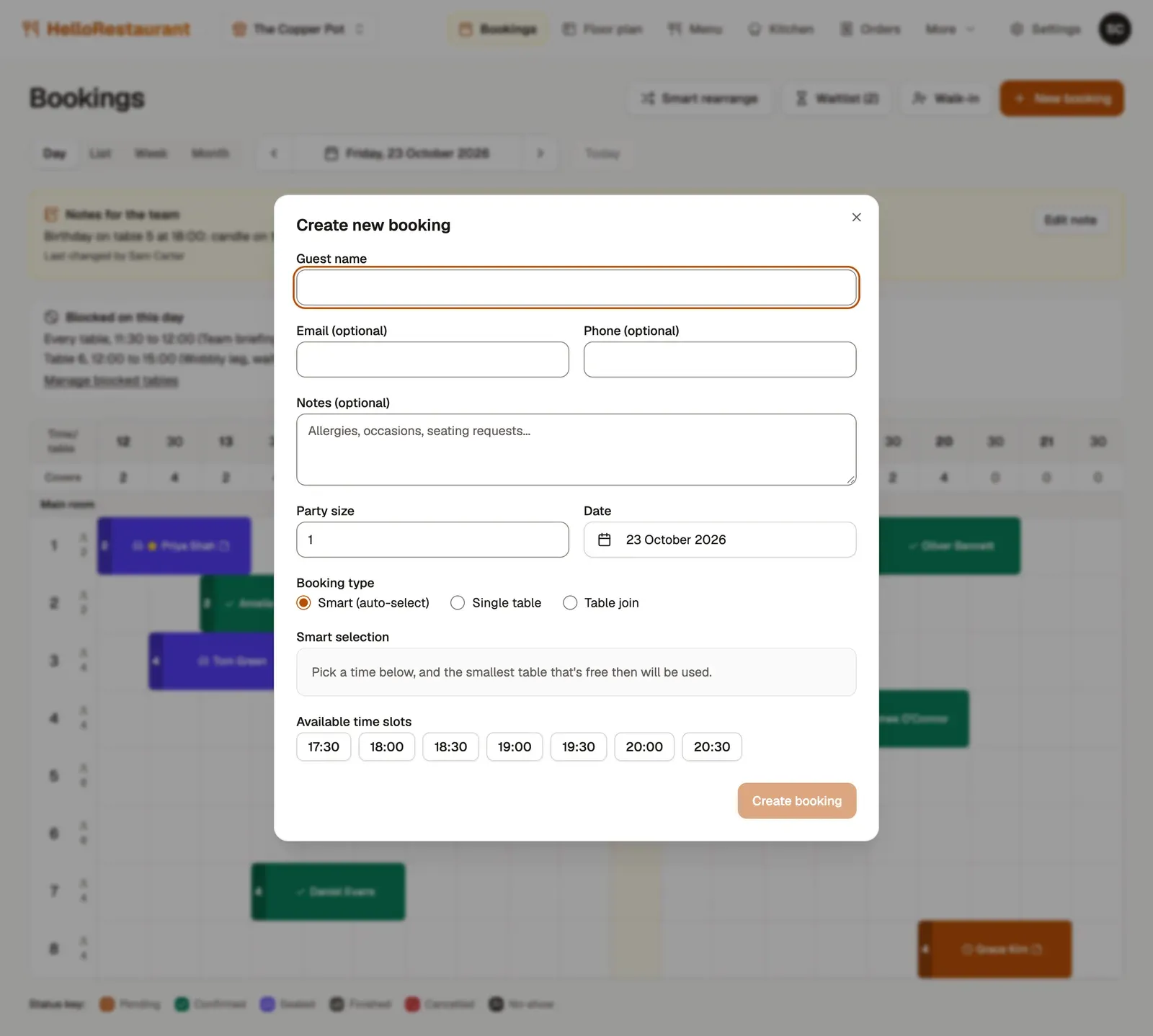
-
Press New booking, then type the Guest name. Add their email and phone if you have them, and any Notes, such as an allergy or a birthday.
-
Set the Party size and the Date.
-
Choose the Booking type:
- Smart (auto-select): the smallest free table that fits is chosen for you, or the smallest table join for a bigger party. Use this most of the time.
- Single table: choose the table yourself, for a guest who always sits by the window.
- Table join: choose which joined tables to use.
-
Choose a time from Available time slots. Only times when a table that fits is free are shown.
-
Press Create booking.
If you add the guest’s email address, they get a confirmation with a link to change or cancel their booking.
Online bookings
Section titled “Online bookings”When online bookings are on, guests book on your booking page any time of day. Their bookings appear here straight away, and you get an email about each one.