

Walk-ins and the waitlist
Walk-ins and the waitlist live on the Bookings page. Their buttons show when Allow walk-ins is on in Booking rules. It’s on to start with.
Seat a walk-in
Section titled “Seat a walk-in”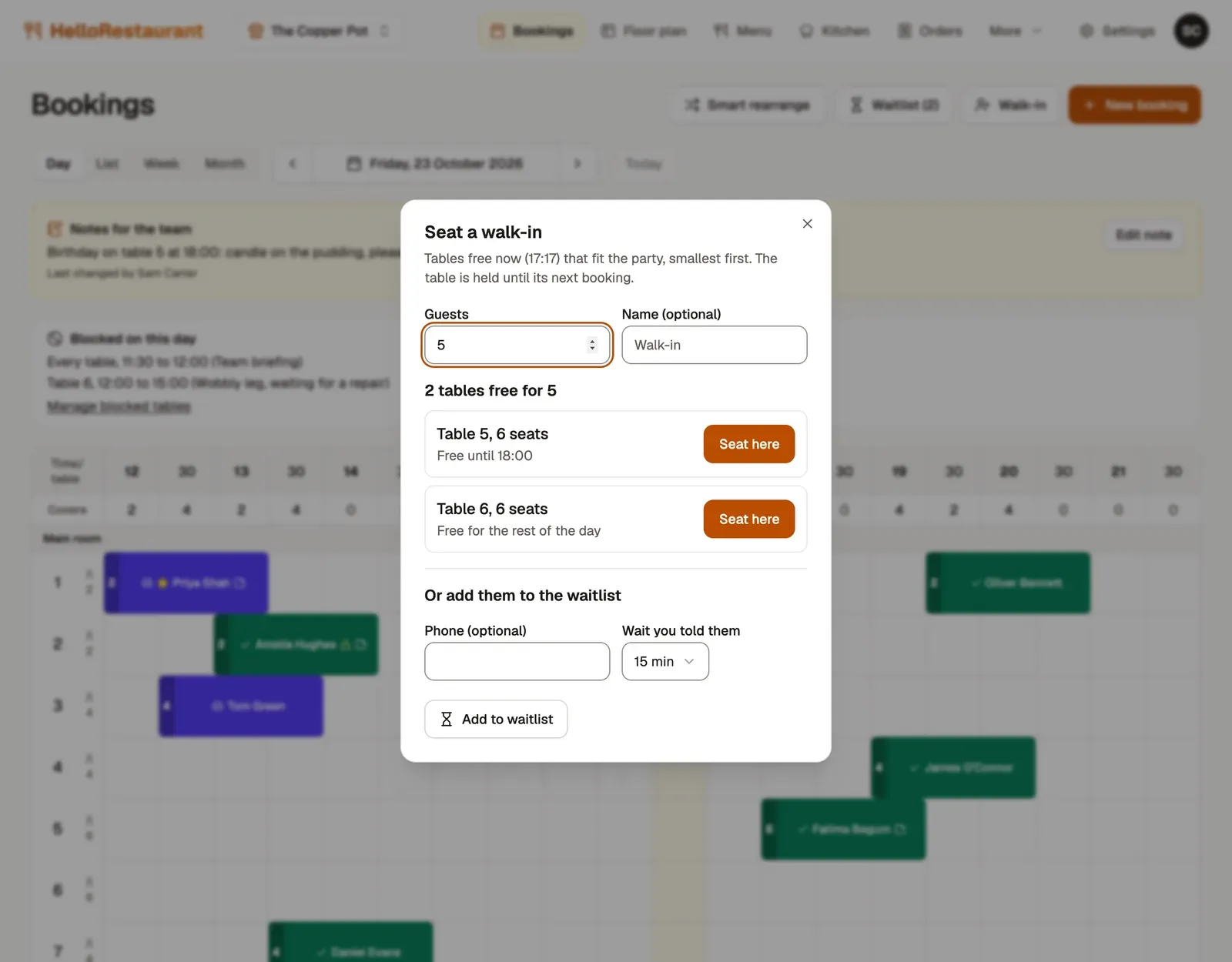
-
Press Walk-in, then set how many Guests. Add their name if you like.
-
The tables free now that fit the party are listed, smallest first, with how long each is free: until its next booking, or for the rest of the day. Press Seat here beside the one you want.
-
No table yet? Use Or add them to the waitlist, below the tables. See the next section.
Seating a walk-in adds a booking to that table, marked as a walk-in, so the table can’t be booked online until they leave. When they go, open the booking and set it to Finished to free the table.
The waitlist
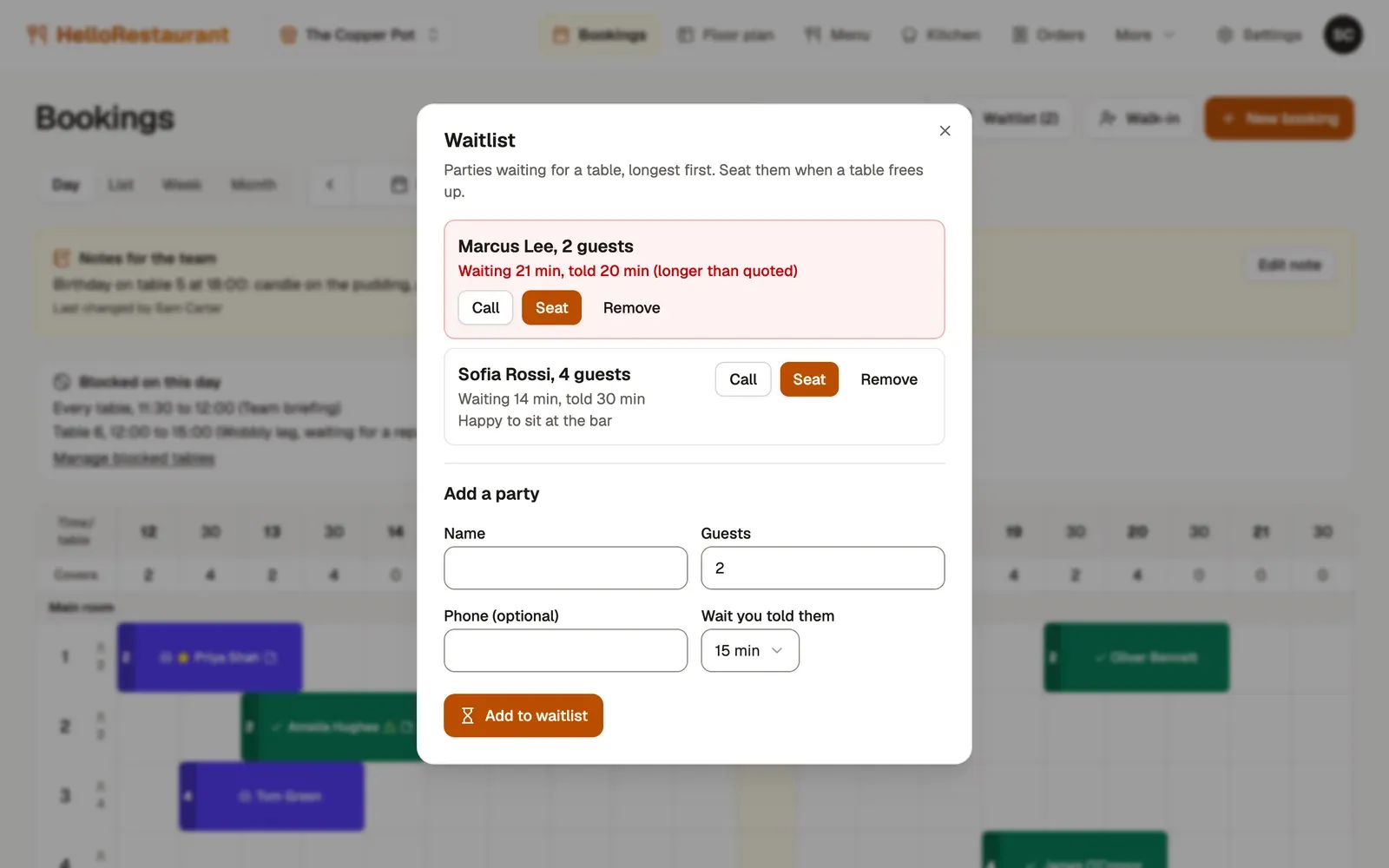
Section titled “The waitlist”When you’re full, add people to the waitlist, then seat them in order as tables free up. The Waitlist button shows how many are waiting.
-
Press Waitlist. Under Add a party, type their Name and how many Guests, and their phone number if they’ll wait somewhere else.
-
Choose the Wait you told them, such as 20 minutes.
-
Press Add to waitlist.
-
The longest waiting party is at the top, with how long they’ve waited and the wait you told them. When a table frees up, press Seat beside the party. The walk-in window opens with their details filled in, so you choose a table and press Seat here.
If a party waits longer than you told them, the list says so. Press Call to ring them, or Remove if they’ve gone.
Run a service: seat guests, move tables and record no-shows.