

Menus and dishes
Your menus are what guests see when they scan a table QR code, and what your team orders from on the kitchen screen. Guests see a menu during its serving times, so a lunch menu disappears at the end of lunch.
Create a menu
Section titled “Create a menu”- Open Menu in the top bar and press Create new menu.
- Give it a Menu name, such as Lunch or Dinner, and a short description if you like.
- Set the Service start time and Service end time: when guests can order from it.
- Leave Set as active menu ticked, so guests can see it, then press Create menu.
Use one menu for each part of the day, or one served all day. A dish can be on more than one menu.
Add dishes
Section titled “Add dishes”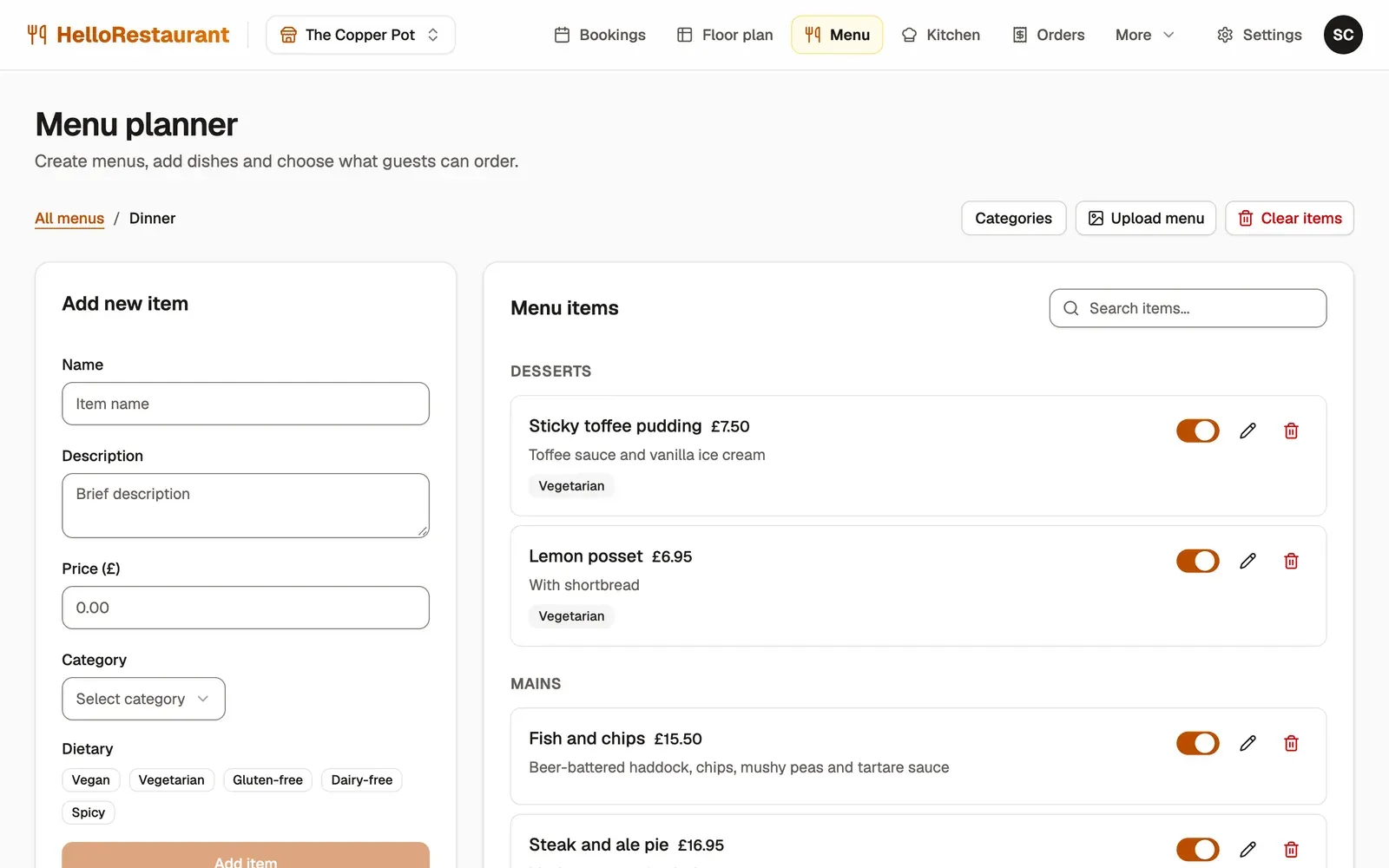
-
Choose a menu under All menus.
-
Under Add new item, type the dish’s name and a short description. Guests read the description when they order, so mention what’s in it.
-
Add its Price (£), choose its Category, such as Starters or Mains, and tick any Dietary labels: Vegan, Vegetarian, Gluten-free, Dairy-free or Spicy. Then press Add item.
-
Use the switch beside a dish to take it off the menu for now, such as a seasonal dish. Switch it back on when it returns.
To change a dish, press its edit button, with a pencil, in the list. To remove it, press its delete button.
Add dishes from a photo of your menu
Section titled “Add dishes from a photo of your menu”Have a printed menu already? Let us type it in for you.
- Choose the menu, then press Upload menu.
- Press Select image and choose a clear photo of your menu, taken straight on and in good light.
- We read the dishes, descriptions and prices from it, including dishes with more than one size, and add them to the menu. The dishes we found are listed when it’s done.
Dishes we couldn’t read a price for are added switched off. Add their price, then switch them on.
Categories
Section titled “Categories”Press Categories to add or remove the categories a menu is grouped by, such as Starters, Mains, Desserts and Drinks. Guests see the menu’s dishes grouped under them.
Sold out during service
Section titled “Sold out during service”Running out of a dish mid-service? Mark it Sold out from the kitchen screen instead. It’s quicker, and staff can do it as well as managers.
Change or remove a menu
Section titled “Change or remove a menu”Each menu under All menus has an edit button and a delete button.
- Edit changes its name, description and serving times, or switches the whole menu off.
- Clear menu takes every dish off it. Dishes that are also on another menu stay there, and dishes guests have ordered are kept for your order history.
- Delete removes the menu, and can’t be undone. Orders guests have already placed stay in your order history.