

Your guest list
Everyone who books with you, online or through your team, is added to your guest list, as long as the booking has an email address or phone number. A guest who books again is matched by them, so their visits add up in one place.
-
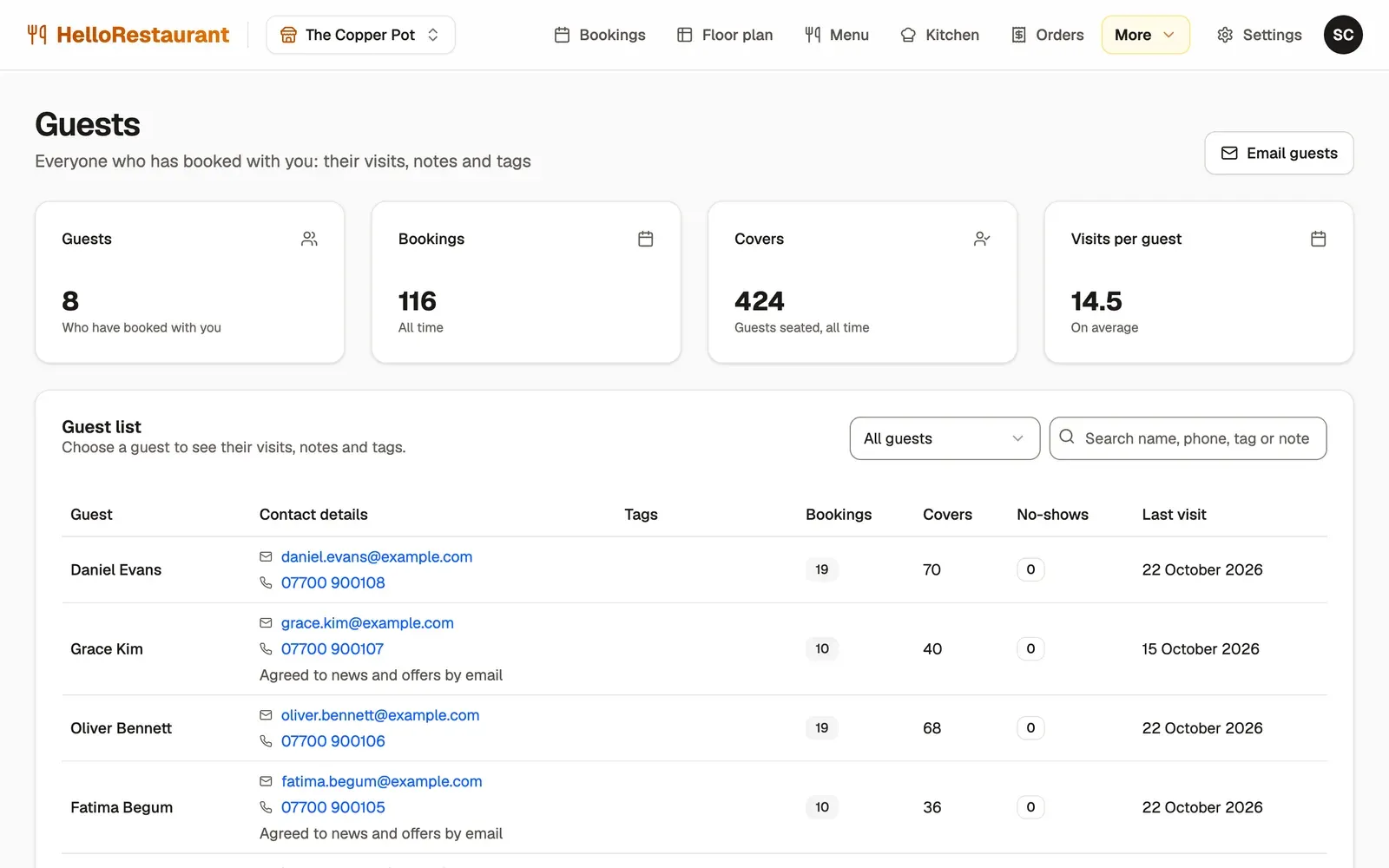
Open More in the top bar, then Guest list. Search by name, phone number, tag or note, or choose a tag to see only the guests with it.
-
Press Email guests to send news and offers to guests who agreed to hear from you. See Email your guests.
At the top are your totals: how many guests have booked with you, all their bookings, how many people you’ve seated, and how often guests come back on average.
Guest profiles
Section titled “Guest profiles”Choose a guest to open their profile. It shows:
- Call and Email buttons
- their Visits, Upcoming bookings, No-shows and Cancellations, and their last visit
- their Booking history, with each booking’s date, time, party size and status
Tags and notes
Section titled “Tags and notes”Tags and notes are private to your team. Staff see them on the guest’s bookings, so everyone knows who’s coming. The guest never sees them.
- Under Tags, choose any that apply: VIP, Regular, Allergy, Dietary needs, Birthday, Anniversary, Accessibility needs, Press or Friend of the house.
- To add your own, type it under New tag, such as “prefers a booth”, and press Add tag.
- Under Guest notes, add anything worth remembering: allergies, a favourite table, likes and dislikes.
- Press Save.
Privacy
Section titled “Privacy”Guest details are only used to run your bookings, and to email guests who agreed to hear from you. Keep notes factual and kind: guests can ask to see what you hold about them.
Email your guests news and offers.