

Exports for your accounts
Download your sales and online payments as spreadsheets (CSV files) that open in Excel, Numbers or Google Sheets, and import into Xero or QuickBooks. Managers and the owner can download exports.
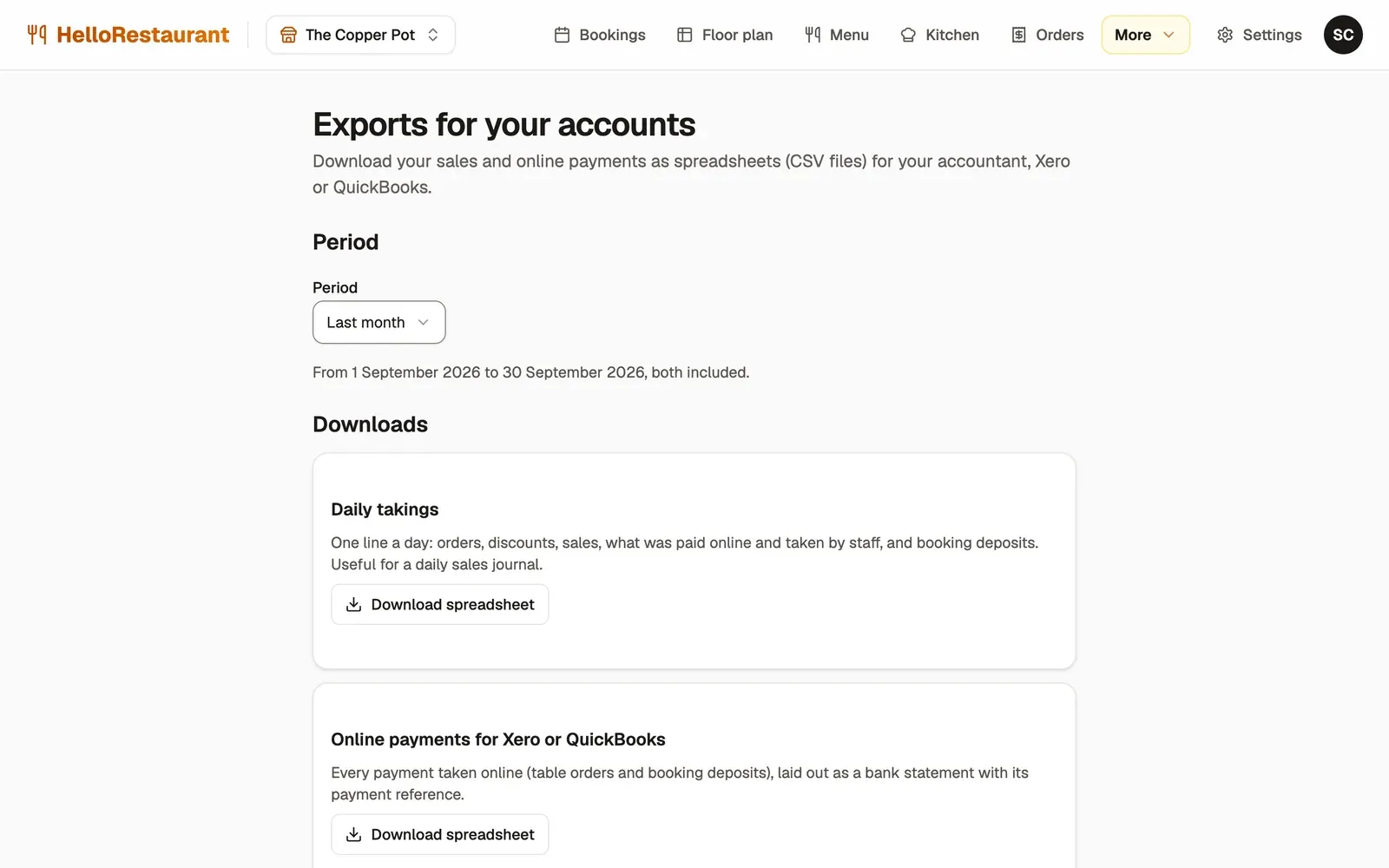
-
Open More in the top bar, then Exports, and choose the Period: Last month, This month so far, This year so far, or Choose dates to set your own. The dates are shown below, both included.
-
Press Download spreadsheet under the export you want.
The exports
Section titled “The exports”| Export | What’s in it | Use it for |
|---|---|---|
| Daily takings | One line a day: orders, discounts, sales, service charges, what was paid online and taken by staff, and booking deposits | A daily sales journal |
| Online payments for Xero or QuickBooks | Every payment taken online, table orders and booking deposits, laid out as a bank statement with its payment reference | Importing into your accounts |
| All orders | Every order with its time, table, dishes, discount, service charge, total and how it was paid | Checking a bill, or your own analysis |
Amounts include VAT where you charge it, and are before any card fees. Service charges are kept apart from sales, because they belong to your staff, and they’re left out of the takings in Analytics.
Import into Xero
Section titled “Import into Xero”- Download Online payments for Xero or QuickBooks.
- In Xero, open the bank account you use for online sales.
- Choose Import a statement, and pick the file.
Import into QuickBooks
Section titled “Import into QuickBooks”- Download Online payments for Xero or QuickBooks.
- In QuickBooks, go to Banking.
- Choose Upload transactions, and pick the file.
Stuck? See Troubleshooting.