

Social posts
Social posts show under What’s On on your booking page, so guests see what’s coming up when they book: a new menu, a quiz night, Sunday roasts.
-
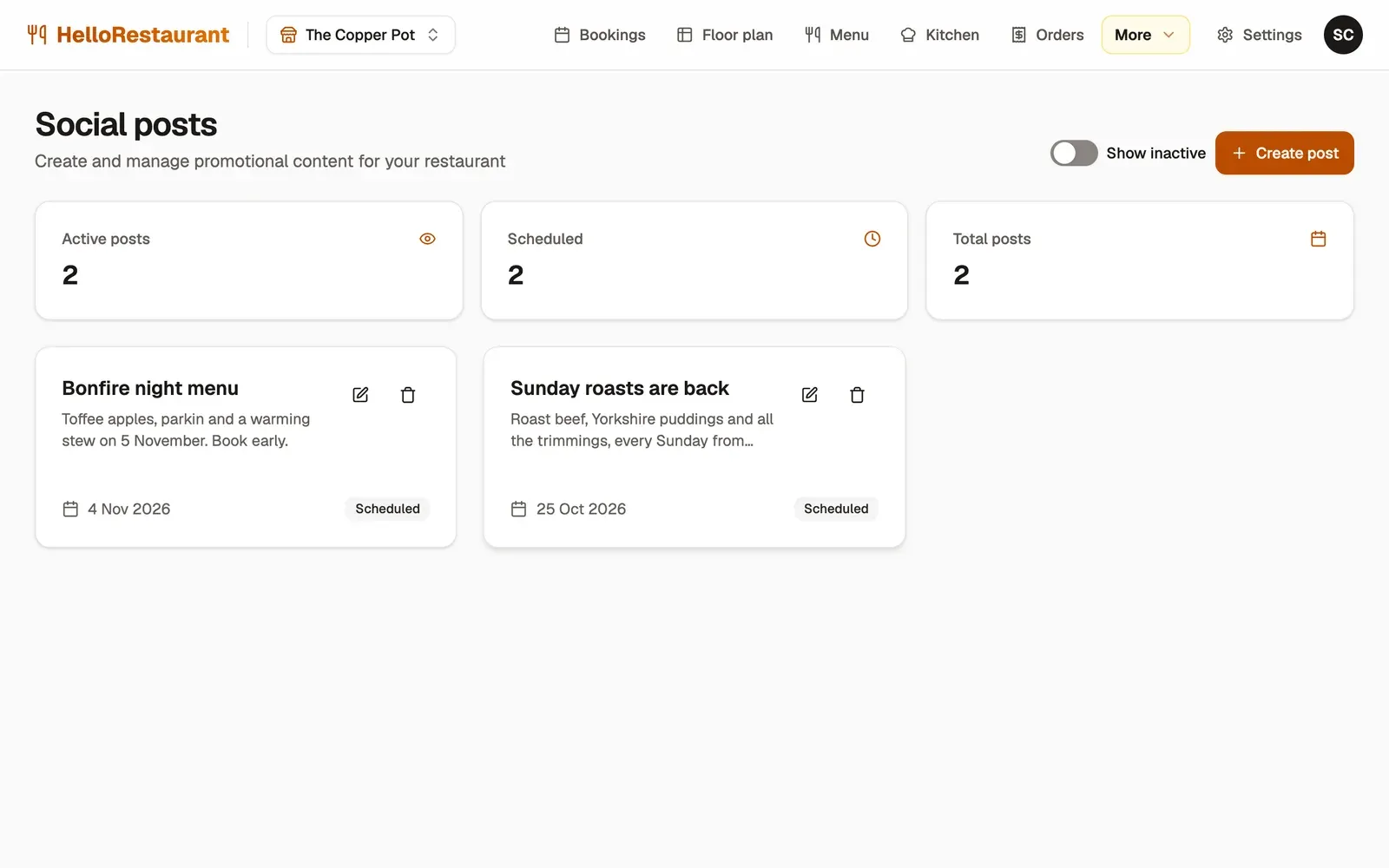
Open More in the top bar, then Social posts, and press Create post. Add a Title, a Description, a photo if you like, and the Date it’s for. Then press Create post.
-
Press the edit button on a post to change it, or the delete button to remove it.
-
Switch on Show inactive to also list posts you’ve switched off. Each post says whether it’s Live today, Scheduled for a later date, or Past.
Which posts guests see
Section titled “Which posts guests see”A post shows on your booking page while it’s switched on, from now until the end of its date. After its date it drops off by itself, so there’s nothing to tidy up.
To hide a post without deleting it, edit it and switch off its Active status.