

Payments with Stripe
Guests pay deposits and pay for orders from their table by card. That money goes straight into your restaurant’s own Stripe account, and Stripe pays it into your bank. Stripe is the payments company that handles the cards.
Set it up once. Until you do, guests book without a deposit, and only your team can take orders. Only the restaurant’s owner can set up payments.
What it costs
Section titled “What it costs”Stripe charges its standard card fee on each payment, from 1.5% + 20p for UK cards. It’s taken before Stripe pays you. HelloRestaurant doesn’t take a penny.
Set up payments
Section titled “Set up payments”Have your bank details and photo ID to hand. It takes about 10 minutes.
-
Open Settings in the top bar, choose Payments, then press Set up payments with Stripe. Stripe’s own form opens.
-
Fill in Stripe’s form: your business, who runs it, and the bank account to pay the money into. Stripe asks for photo ID to check who you are, as every payments company must.
-
At the end, Stripe brings you back to Payments, which says where you’ve got to.
If you stop partway, press Continue setup with Stripe to pick up where you left off.
Where you’ve got to
Section titled “Where you’ve got to”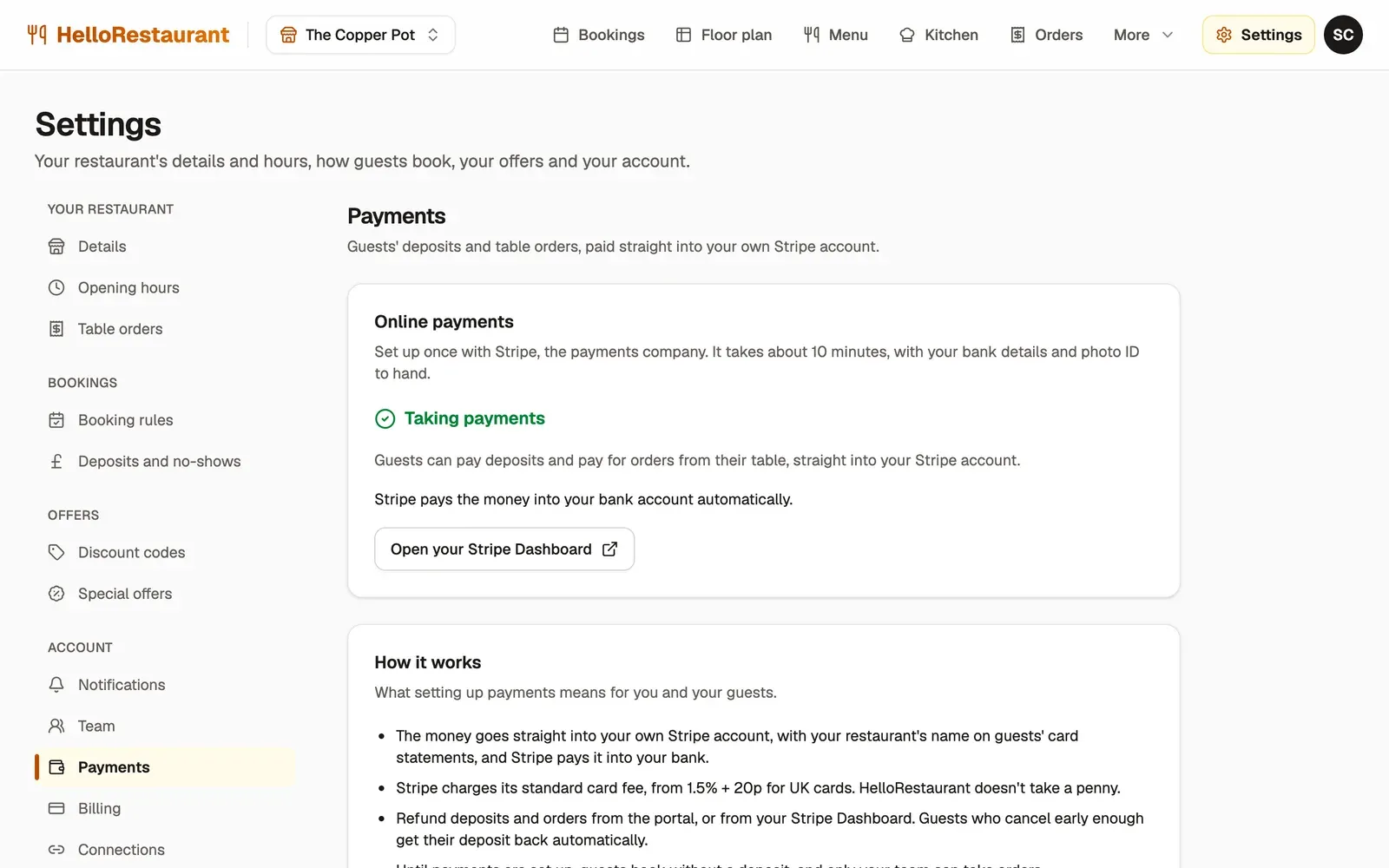
-
Payments in Settings, under Account.
-
Where your setup has got to:
- Not set up yet: press Set up payments with Stripe.
- Setup not finished: press Continue setup with Stripe.
- Stripe is checking your details: this usually takes a few minutes, sometimes a day or two. We email you when it’s done.
- Taking payments: guests can pay online.
- Stripe needs more details: you can still take payments, but give Stripe what it asks for by the date shown, or it pauses them.
- Payments paused by Stripe: guests can’t pay online until you give Stripe what it needs. Press Continue setup with Stripe to see what that is.
-
Open your Stripe Dashboard to see your payments, payouts to your bank, refunds and disputes. Sign in at dashboard.stripe.com with the email address you gave Stripe.
Refunds
Section titled “Refunds”- Deposits: guests who cancel from their booking email far enough ahead get their deposit back automatically. Choose how far ahead in Deposits and no-shows. To refund a deposit yourself, open the booking and press the refund button beside Deposit paid.
- Table orders: on the Orders page, press Refund beside the order.
A refund comes out of your Stripe balance and takes a few days to reach the guest’s card. Stripe keeps its fee. Refunds you make in your Stripe Dashboard show in the portal too.
Disputes
Section titled “Disputes”If a guest’s bank disputes a payment, Stripe takes the amount from your Stripe balance while the bank decides, and we email you. Respond in your Stripe Dashboard under Disputes, by the date Stripe gives. Useful evidence: when the booking or order was made, the guest’s details, and your booking emails.