

Email your guests
Tell your regulars about a new menu, an event or a quiet night offer. Emails only go to guests who agreed to hear from you: when guests book online, they can tick a box to get your news and offers by email.
Managers and the owner can send emails to guests.
Write and send an email
Section titled “Write and send an email”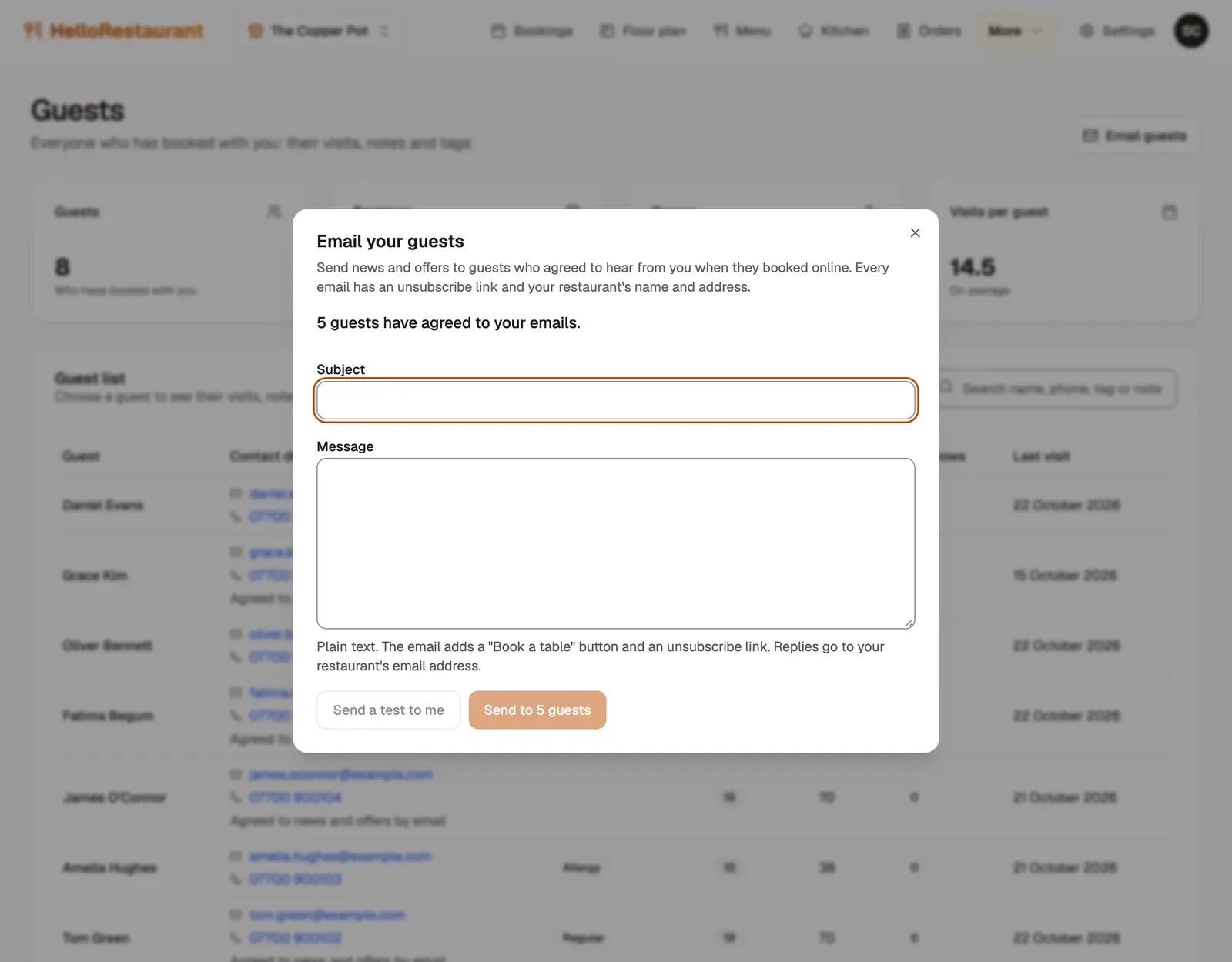
-
Open More in the top bar, then Guest list, and press Email guests. It says how many guests have agreed to your emails. Type a Subject, such as “Our new autumn menu”.
-
Write your Message in plain text. Keep it short, and say what’s on and when.
-
Press Send a test to me and check the email arrives and reads well.
-
Press Send to the number of guests, then Send now to confirm.
What guests get
Section titled “What guests get”Every email has:
- your message, under your restaurant’s name
- a Book a table button that opens your booking page
- your restaurant’s name and address, and an unsubscribe link
When guests reply, the reply goes to your restaurant’s email address, set in Restaurant details.
Short lists go out straight away. Longer ones go in batches over the next hour or so. Under Emails you’ve sent, each email shows how many guests it went to, or how far it’s got while it’s still sending.
Who gets your emails
Section titled “Who gets your emails”Guests who ticked the box when they booked online. In your guest list, they’re marked Agreed to news and offers by email. Guests who unsubscribe stop getting your emails straight away.
Guests you add yourself, by phone or as walk-ins, haven’t agreed, so they don’t get your emails.