

Table QR codes
Each table has its own QR code. When guests scan it with their phone camera, your menu opens with their table already chosen. They order, pay by card, and the order goes straight to your kitchen screen.
Print your QR codes
Section titled “Print your QR codes”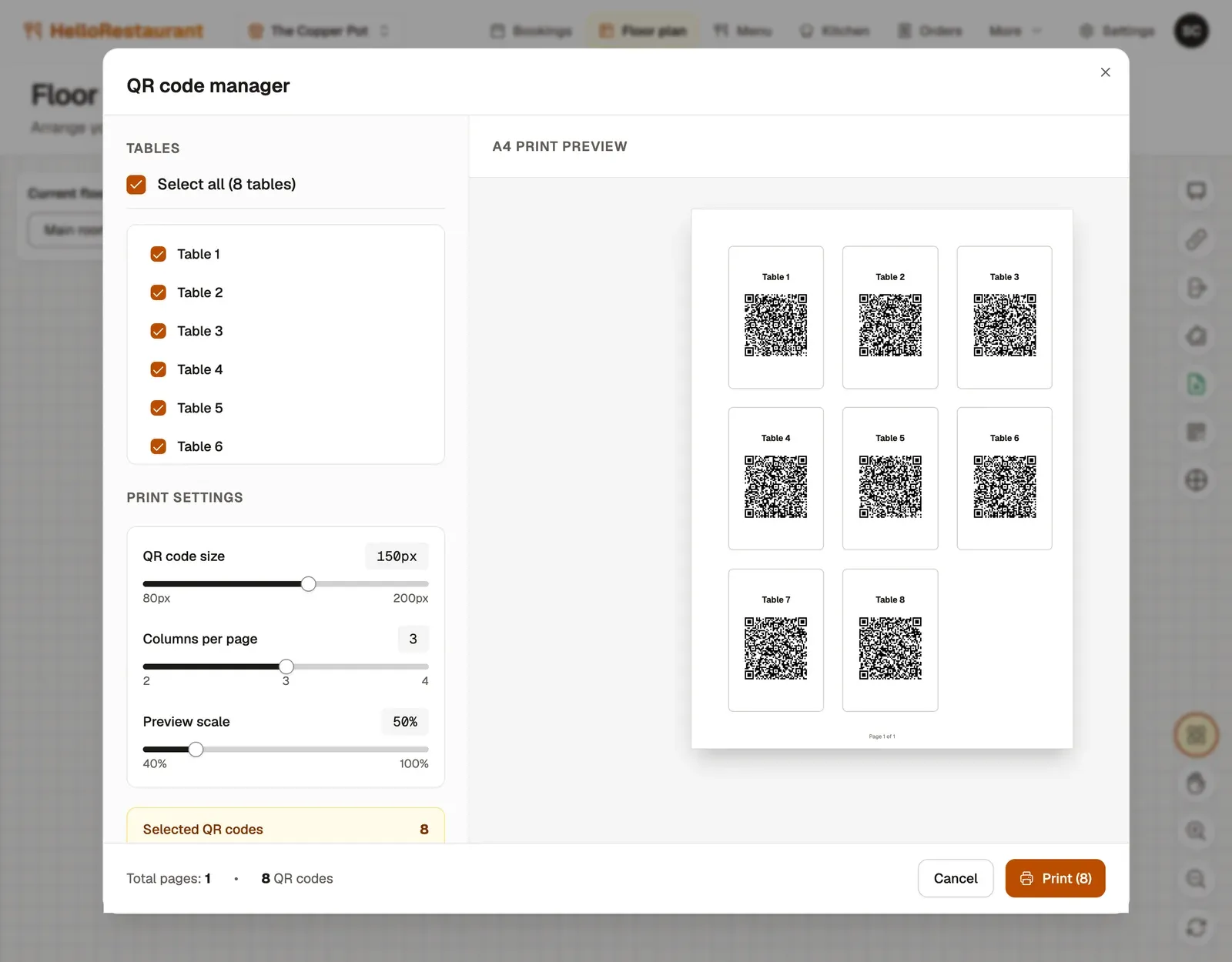
-
Open Floor plan in the top bar and press Manage QR codes. Tick the tables you want, or Select all.
-
Under Print settings, choose the QR code size and the Columns per page. The A4 preview shows how the page will look.
-
Press Print, and print onto card or sticker paper.
One table’s code
Section titled “One table’s code”Each table on the floor plan has a QR code button, named after the table, such as Table 5 QR code. It shows that table’s code, and a Quick link you can open yourself to see what guests see.
What guests see
Section titled “What guests see”- The menus you’re serving right now, with prices, descriptions and dietary labels.
- They add dishes, and any notes such as allergies.
- At checkout they enter their email for a receipt, add a discount code if they have one, and pay by card.
Guests only see menus that are switched on and being served at that time. See Menus and dishes.