

Block a table or time
Sometimes a table, or the whole restaurant, isn’t free: a private party, a table waiting for a repair, a team briefing. Block it, and guests can’t book it online. Your team sees it as taken too.
Staff can block tables as well as managers, so whoever’s on shift can take a broken table out of use.
Block a table or time
Section titled “Block a table or time”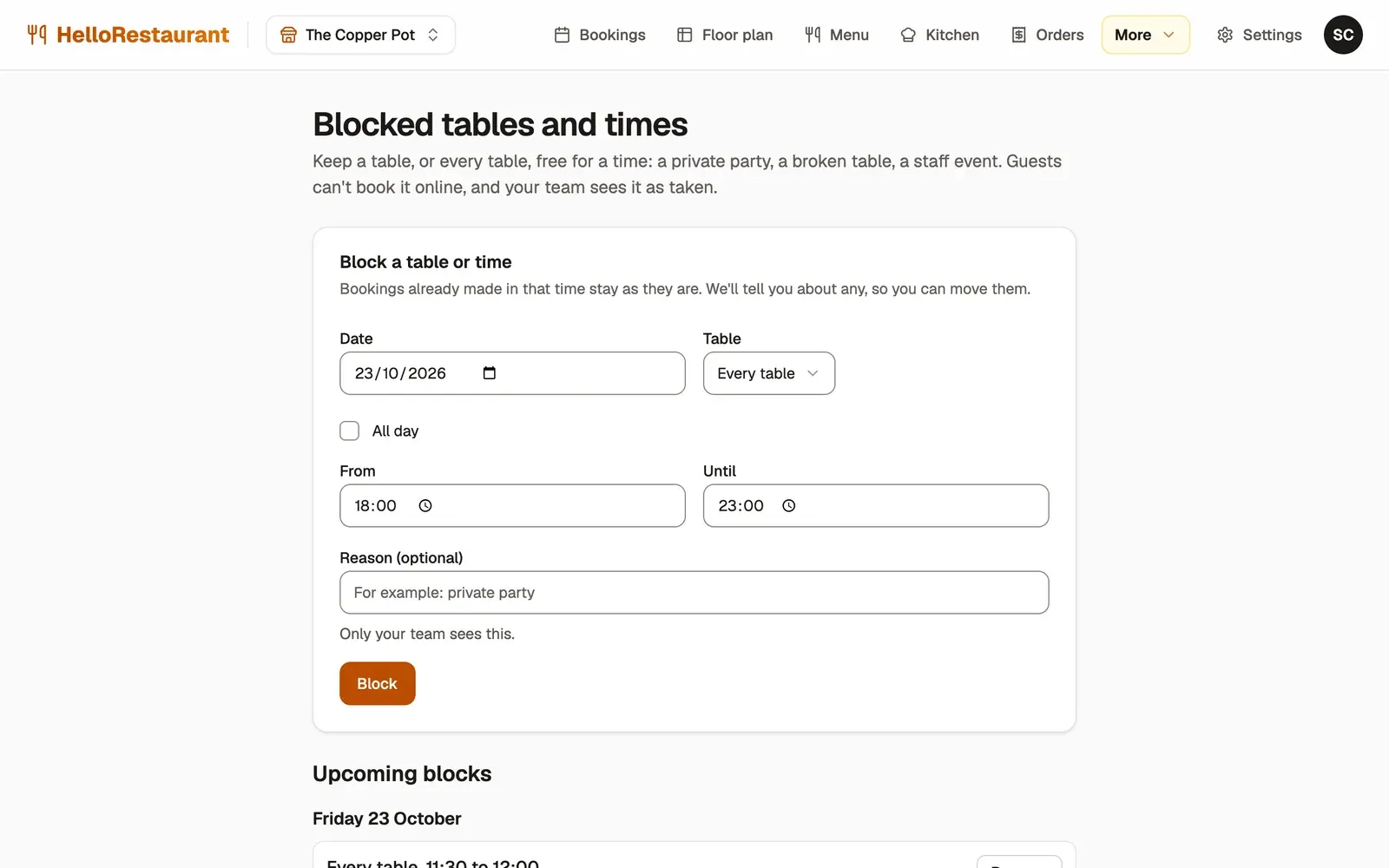
-
Open More in the top bar, then Blocked tables, and choose the Date.
-
Choose the Table, or Every table to close the whole restaurant for that time.
-
Tick All day, or set the times From and Until.
-
Add a Reason if you like, such as “Private party”. Only your team sees it.
-
Press Block.
See and remove blocks
Section titled “See and remove blocks”Under Upcoming blocks, every block from today on is listed by date. Press Remove beside one to open the table again.
On the Bookings page, the day’s blocks show under Blocked on this day, with a link to manage them.
Blocks, closures and booking rules
Section titled “Blocks, closures and booking rules”- A table or a few hours: use a block.
- A whole day you’re closed, such as a bank holiday: add it as a holiday closure.
- Every week, such as closing on Mondays: set it in your opening hours.
Print your table QR codes, so guests can order from their table.