

The kitchen screen
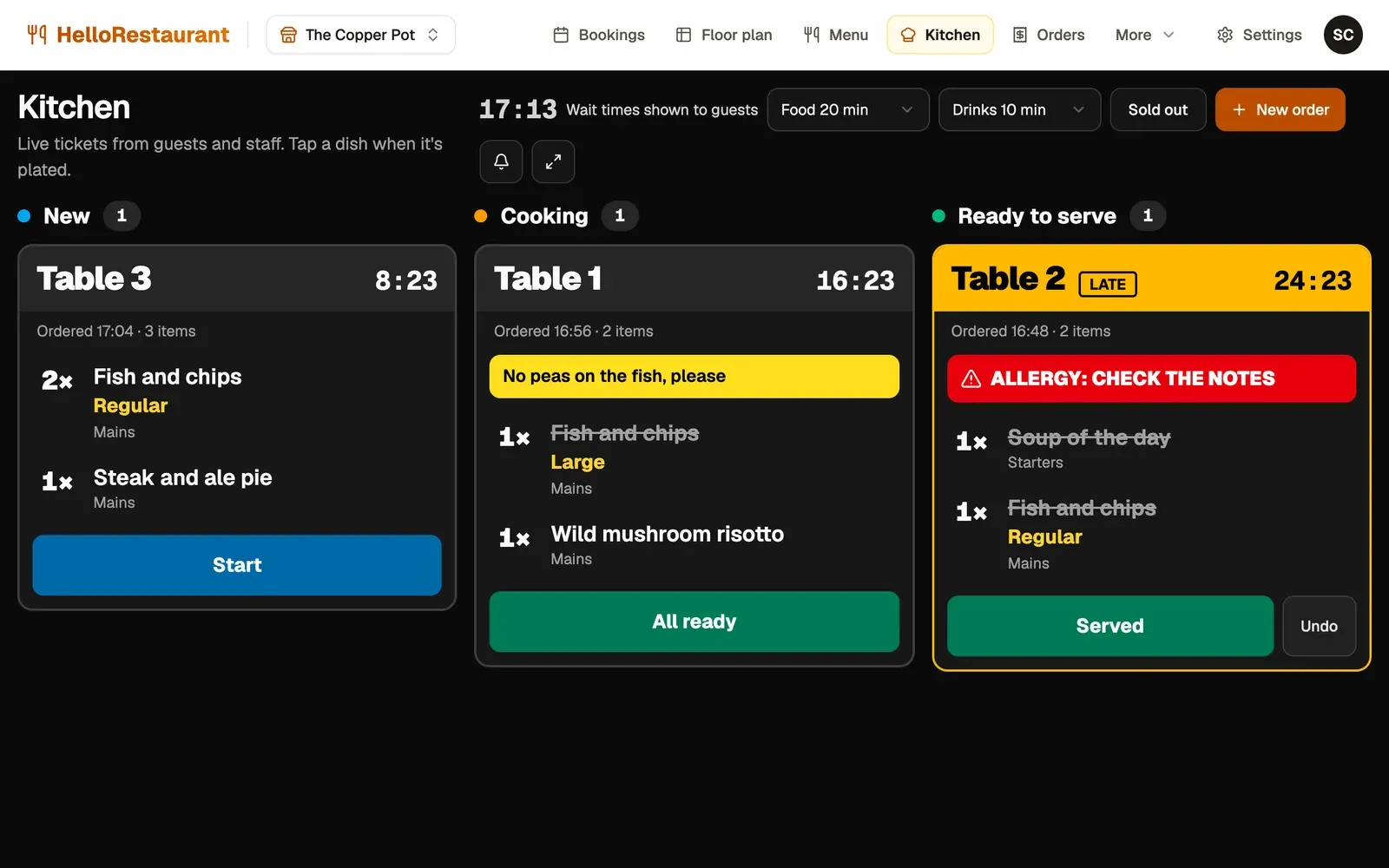
Orders guests place from their table, and orders your team takes, arrive on the kitchen screen as tickets. Put it on a tablet or screen in the kitchen, and on one at the pass if you like: every screen updates together.
-
New tickets arrive under New, with a chime. Press Start when you begin one, and it moves to Cooking.
-
Tap each dish as it’s plated, and it’s marked done. When the last one is done, or when you press All ready, the ticket moves to Ready to serve.
-
Take an order yourself with New order: choose the table and the menu, add the dishes, then press Create order.
When the food has gone out, press Served on the ticket, and it leaves the screen. Moved a ticket to Ready to serve too soon? Press Undo to send it back to Cooking.
Reading a ticket
Section titled “Reading a ticket”Each ticket shows:
- the table number, and how long ago it was ordered
- each dish, its size if it has one, and how many
- the guest’s notes, such as “No peas on the fish”
- Allergy: check the notes when the guest told us about an allergy
- Late once the ticket has waited longer than the food wait time guests are told, and Very late 10 minutes after that
Wait times shown to guests
Section titled “Wait times shown to guests”At the top of the screen, Wait times shown to guests sets the food and drinks waits guests see when they order. Change them as the kitchen gets busier, so guests know what to expect. The food wait is also when tickets turn Late.
Sold out
Section titled “Sold out”Press Sold out to see every dish with a switch. Switch a dish off when you run out, and guests can’t order it until you switch it back on. The button shows how many dishes are sold out.
Chime and full screen
Section titled “Chime and full screen”- Chime for new orders turns the sound on or off for this screen.
- The full screen button hides everything else, for a screen that only shows tickets. Press it again, or Escape, to leave.
See every order, with its dishes, total and payment.