

Go live
Online bookings start switched off, so nothing goes live until you’re ready. While they’re off, your booking page shows your phone number instead of a booking form.
Before you switch on
Section titled “Before you switch on”Guests can only book times you can really take, so check these first:
- Opening hours: guests are only offered times when you’re open, and not on closed days or holidays.
- Floor plan: every table, with the right number of chairs. Guests are only offered a table that fits their party.
- Booking rules: how far ahead guests can book, the notice you need and how long each booking holds its table.
- Restaurant details: your phone number and email address, so guests can reach you.
- Your booking page address: the web address you’ll share.
The setup checklist on the Bookings page shows what’s still to do.
Turn on online bookings
Section titled “Turn on online bookings”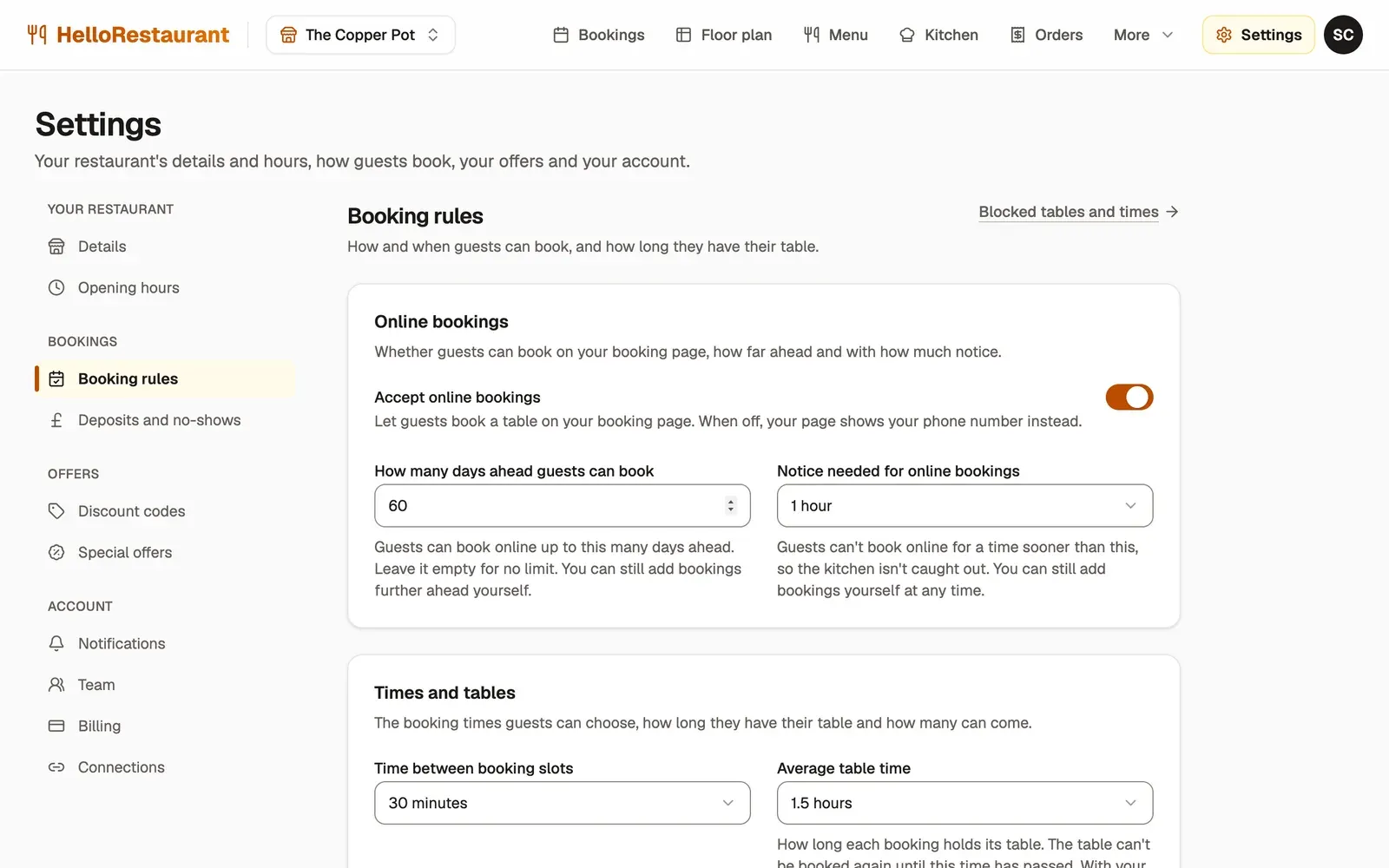
-
Open Settings in the top bar, then choose Booking rules.
-
Switch on Accept online bookings, then press Save changes at the bottom of the page.
Make a test booking
Section titled “Make a test booking”- Open your booking page: in the top bar, open More, choose Website, then press Open your page.
- Book a table as a guest would, using your own email address. You’ll get the guest’s confirmation email, and the restaurant’s email address gets a new booking alert.
- Back in the portal, find the booking on the Bookings page and choose it. Set its Status to Cancelled and press Save changes.
Appear on HelloRestaurant
Section titled “Appear on HelloRestaurant”Once the setup checklist is done and online bookings are on, your restaurant is listed in the search on hellorestaurant.co.uk, and among the newest restaurants on the home page, while your plan or free trial is active.
To be listed, a restaurant needs:
- a phone number, in Restaurant details
- at least one table on the floor plan
- a menu
- a booking page address
- online bookings switched on
Put your booking link everywhere guests look for you: Google, Instagram and your website.