

Deposits and no-shows
An empty table on a busy night costs you money. Two settings help: a card deposit when guests book online, and a limit on how many times a guest can not turn up before they have to call you.
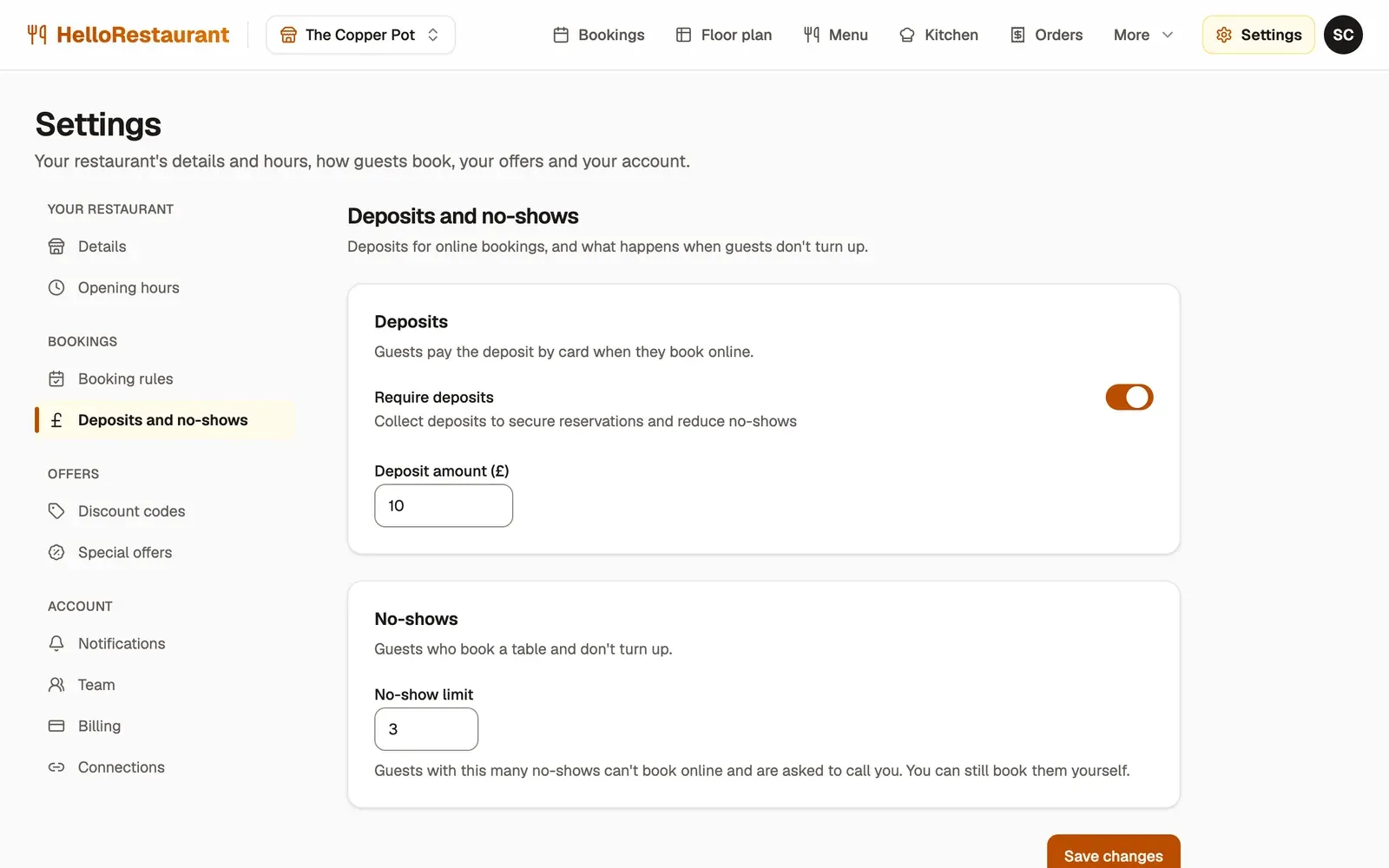
-
Open Settings in the top bar, choose Deposits and no-shows, then switch on Require deposits.
-
Set the Deposit amount (£). It’s one amount for each booking, whatever the party size.
-
Set the No-show limit. Guests with this many no-shows can’t book online, and are asked to call you instead. You can still book them in yourself.
-
Press Save changes.
How deposits work for guests
Section titled “How deposits work for guests”When deposits are on, guests see the amount before they book, then pay it by card to confirm their booking. The booking only goes through once the payment does. If anything stops the booking after they’ve paid, such as the last table going at the same moment, their deposit is refunded straight away.
Deposits only apply to online bookings. Bookings you add yourself, and walk-ins, don’t take one.
Seeing who paid
Section titled “Seeing who paid”Bookings with a deposit show Deposit paid and the amount, on the bookings list and when you open the booking.
Deposits are also in your exports: each day’s total in Daily takings, and each payment, with its reference, in Online payments.
Recording no-shows
Section titled “Recording no-shows”The no-show limit only works if no-shows are recorded. When a party doesn’t turn up, open their booking on the Bookings page and press Mark as no-show. See Run a service.
Each guest’s no-shows show in your guest list, and the no-show rate for the period is in Analytics.
Choose your notifications: the emails we send guests, and you.